Body
Issue
This issue can occur when installing Solidworks from the F drive installer. It will install for a couple of minutes but stay stuck at 1% until a window pops up and says something along the lines of "Internal Error Detected windows installer failed to communicate"
Steps to Resolve
Close Your Programs
The first step would be to ensure that all applications are closed, with your internet browser being an exception to this. There are many programs that utilize VBA and will prevent the following steps from completing if they are left open. One of the major culprits of this is Microsoft Teams, as it is constantly running in the background. For any programs like this, you can open up your task manager and on the details tab you can End Task on the background processes of Teams and any other program that you have where you think it is running in the background.
Open the Command Manager
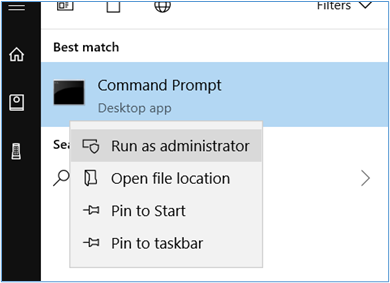
After this you can open the command manager by searching for this in the windows search bar and running this as administrator.
Copy & Paste Text into Open Command Prompt
You will then need to copy the below text and paste this into the open command prompt and press enter.
msiexec.exe /X {90120064-0070-0000-0000-4000000FF1CE} /q
msiexec.exe /X {90F60409-7000-11D3-8CFE-0150048383C9} /q
msiexec.exe /X {90F60404-7000-11D3-8CFE-0150048383C9} /q
msiexec.exe /X {90F60407-7000-11D3-8CFE-0150048383C9} /q
msiexec.exe /X {90F6040C-7000-11D3-8CFE-0150048383C9} /q
msiexec.exe /X {90F60410-7000-11D3-8CFE-0150048383C9} /q
msiexec.exe /X {90F60411-7000-11D3-8CFE-0150048383C9} /q
msiexec.exe /X {90F60412-7000-11D3-8CFE-0150048383C9} /q
msiexec.exe /X {90F60416-7000-11D3-8CFE-0150048383C9} /q
msiexec.exe /X {90F60804-7000-11D3-8CFE-0150048383C9} /q
msiexec.exe /X {90F60C0A-7000-11D3-8CFE-0150048383C9} /q
msiexec.exe /X {07C0BFE1-3291-409C-B96A-797340719C8F} /q
msiexec.exe /X {826216B1-0F04-409B-A33E-C6A004AA1097} /q
msiexec.exe /X {B07D817E-C885-4F06-9AB3-E7C6B9D4BBC8} /q
msiexec.exe /X {3577C582-28BF-47CF-A134-0F4E2C3A6148} /q
msiexec.exe /X {B7526322-7FED-4F4F-8F17-E3ACE9E0D725} /q
msiexec.exe /X {B8702FFD-CD7E-4A33-A863-DCD32CF2558F} /q
msiexec.exe /X {47B42A58-D3A9-4A09-B10C-DFBF38665B92} /q
msiexec.exe /X {33A11EB1-D1F7-4874-9A8C-280084753911} /q
msiexec.exe /X {2A6AD565-3D10-4326-9C07-9D469946A0A2} /q
msiexec.exe /X {E4E1AAF7-A590-4DD7-85CE-C5B542677D2F} /q
msiexec.exe /X {7DBDBAC5-B994-467B-9D5F-EA427F2A5212} /q
Install Older Versions of SOLIDWORKS
You should now be able to install your older versions of SOLIDWORKS. During your first install, if you were choosing to create a new toolbox, you will need to change the toolbox location to a different folder as the default location will be pointed at the remnants of the previous install and fail because of this.
If the new installation fails with the same error, then this is due to background processes still running and blocking the uninstall of the VBA components done in step above. You may need to reboot your computer, and make sure all other processes are closed and repeat these steps.
Run a Repair of 2021 to Re-Upgrade VBA Components
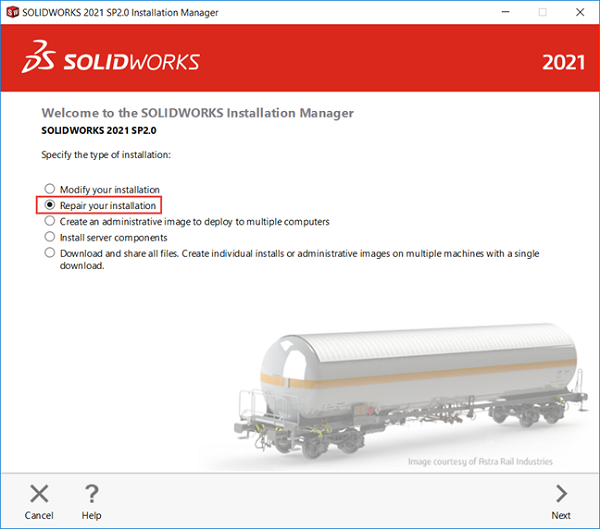
Once all installations of older versions of SOLIDWORKS are complete, you will then need to run a repair of your 2021 software in order to re-upgrade the VBA components. After this, all versions of SOLIDWORKS will then function as intended.
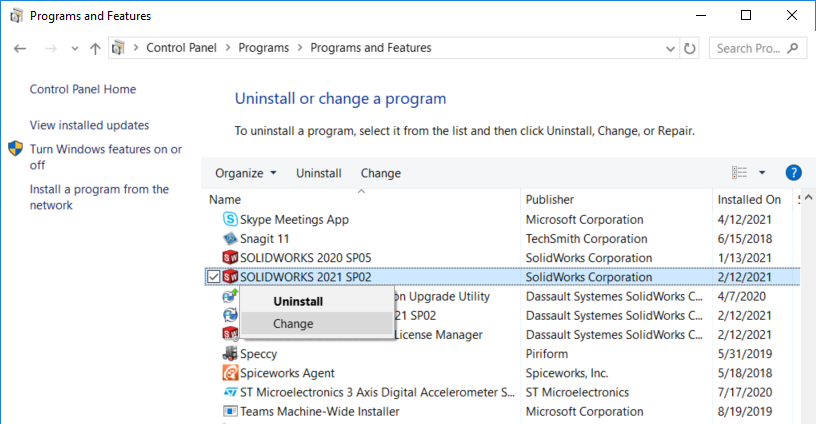
To run this repair, open the control panel by searching for this in the Windows search. You will then need to navigate to Uninstall a Program or Programs and Features. Here you can now right click SOLIDWORKS and select Change.
Choosing to repair will then upgrade the VBA components once again. This version of VBA can still be used by all versions of SOLIDWORKS, the only issue is that the older installers do not recognize this.